Community and Enterprise
ag-Grid comes in two forms: ag-Grid Community (free for everyone, including production use) and ag-Grid Enterprise (you need a license to use).
 The Enterprise version of ag-Grid comes with more grid features and
Support via Zendesk.
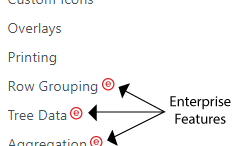
The features that are available in agGrid Enterprise only are marked with the
Enterprise icon
The Enterprise version of ag-Grid comes with more grid features and
Support via Zendesk.
The features that are available in agGrid Enterprise only are marked with the
Enterprise icon  as demonstrated
in the image to the right.
See Pricing for details on purchasing an ag-Grid Enterprise license.
as demonstrated
in the image to the right.
See Pricing for details on purchasing an ag-Grid Enterprise license.
Trial ag-Grid Enterprise for Free
It is free to try out ag-Grid Enterprise. Please take ag-Grid Enterprise for a test run. You do not need to contact us. All that we ask when trialing is that you don't use ag-Grid Enterprise in a project intended for production.
Feature Comparison
The below table summarizes the features included in ag-Grid Community and ag-Grid Enterprise. Note that ag-Grid Enterprise builds on ag-Grid Community, it offers everything ag-Grid Community offers plus more.
Installing ag-Grid Enterprise
Each of the Getting Started guides gives step by step instructions on how to get started using ag-Grid Enterprise for the framework in question. In most cases, you do one of the following:
-
If using node modules and ES6 imports, firstly reference the
@ag-grid-enterprise/all-modulesmodule in yourpackage.json:"dependencies": { "@ag-grid-enterprise/all-modules": "21.0.x" ... Then reference the ag-Grid Enterprise module:
import {AllModules} from '@ag-grid-enterprise/all-modules'; Then depending on your choice of framework you'll need to provide the modules to the grid:
// javascript new Grid(<dom element>, gridOptions, { modules: AllModules}); // angular public modules: Module[] = AllModules; <ag-grid-angular> [rowData]="rowData" [columnDefs]="columnDefs" [modules]="modules" </ag-grid-angular> // react <ag-grid-react> rowData={rowData} columnDefs={columnDefs} modules={AllModules} </ag-grid-react> Here we are including all modules provided by ag-Grid - if you want to only pull in the modules you need (and thus reduce your overall bundle size) then please refer to the modules documentation.
How you use ag-Grid (eg how you create a grid) does not change. With the one 'import' line of code above the grid will have all of the enterprise features at your disposal.
The versions of the modules you use (for example @ag-grid-community/all-modulesand@ag-grid-enterprise/all-modulesshould match. They are released in tandem and expect the same version of each other.-OR-
-
If including the bundled ag-Grid script directly into your webpage, then reference
@ag-grid-enterprise/all-modules/dist/ag-grid-enterprise.jsinstead of@ag-grid-community/all-modules/dist/ag-grid-community.js.As before, you use ag-Grid in the same way, but including the enterprise script will enable ag-Grid to have all enterprise features at your disposal.
Trial License Key
When you do not have a license key installed then ag-Grid Enterprise will display a invalid key watermark. If you would like to remove this watermark so it's not in the way, please send us an e-mail info@ag-grid.com and get a trial license key.
Support While Trialing
You can access Support via Zendesk for help while trialing. Email info@ag-grid.com to get set up with access.
Setting the License Key
Set the license key via the JavaScript method as described below. ag-Grid checks the license key without making any network calls. The license key is set once for the grid library. You do not need to set the license key for each instance of ag-Grid that you create, it is just set once statically into the ag-Grid library. You must set the license key before you create an instance of ag-Grid, otherwise ag-Grid will complain upon creation that no license key is set.
Note that you must pass the key exactly as provided by ag-Grid - do not modify the key in any way.
JavaScript
Use this if you are using the bundled version of ag-Grid (e.g. you are using @ag-grid-enterprise/all-modules/dist/ag-grid-enterprise.js).
CommonJS
@ag-grid-enterprise/core
will be available - you do not need to specify it as a dependency.Use this if you are using CommonJS to load ag-Grid.
Do Not Mix Loading Mechanisms
If you mix the methods above (eg if you are using CommonJS in your application, but use the JavaScript approach above to set license key) then it will not work. This is because the ag-Grid library will be loaded twice, one will have the license key and the other will be used in your application without the license key.
Angular
We recommend setting the license key in your main boot files (typically named either main.ts or
boot.ts, before you bootstrap your application.
For example:
React
We recommend setting the license key in your main bootstrap file (typically named index.js), before you bootstrap your application.
For example:
VueJS
We recommend setting the license key in your main bootstrap file (typically named main.js), before you bootstrap your application.
For example:
Polymer
You have two choices as to where to set your license key in Polymer.
If you have many components with agGrid in, the we suggest you run a separate script to reference and set the license key - for example:
If you have a single component, or a single component that in turn has the child components, you can set the license key in this parent component - for example:
Invalid License
If you have an enterprise grid running with an invalid license (no license, expired license) your console log will display a series of warnings and the grid will show a watermark for 5 seconds.