Accessibility
ag-Grid provides amongst the best support for accessibility compared to other grids available on the market today. This page provides guidance on how to address accessibility concerns in your grid implementations.
Web Conformance Guidelines
Even if you are not mandated to conform to any particular accessibility standard, it can be helpful to understand the guidelines outlined as they are generally good practices worth incorporating into your web based applications.
Currently the most commonly encountered conformance guidelines are:
- ADA - US Department of Justice
- Section 508 - US federal agencies
- WCAG 2.0 - globally accepted standard
WCAG 2.0 has 3 levels of conformance; A, AA and AAA (in order of conformance)
As meeting WCAG 2.0 level AA guidelines also meets the ADA and Section 508 standards, it is likely that most organisations will want to target this standard.
High Contrast Theme
For users that are visually impaired due to colour deficiencies, care should be taken when using colours to provide information.
Using our demo page as an example, the chrome plugin Colorblinding shows how cells with colour indicators might appear to someone with total colour blindness (Monochromacy).
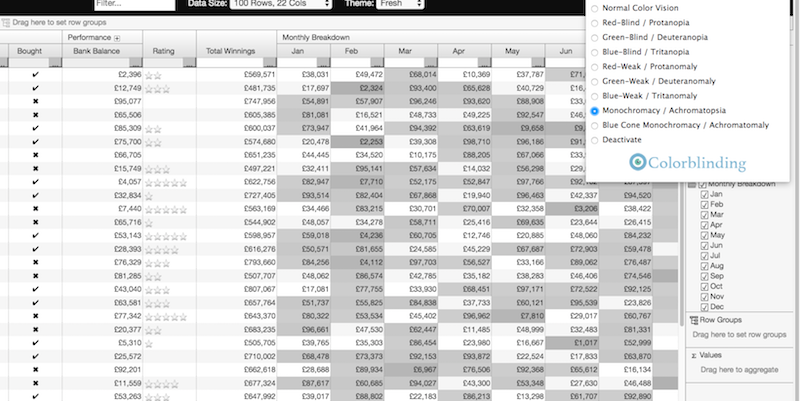
To create a high contrast theme please check out the Themes documentation for details.
Keyboard navigation
Users who have motor disabilities, as well as visually impaired users, often rely on keyboards for navigation.
For details on how to navigate the grid without using a mouse refer to the Keyboard Navigation documentation. Note that it is possible to provide custom navigation which could come in useful for some accessibility requirements.
Skip Navigation
It may also be worth considering providing a "skip link" to easily navigate to the grid. For example you could provide a hyperlink to the grid class attribute, i.e. href='#myGrid'.
The following css snippet shows how you could also hide this link by default and then reveal it when tabbed into:
Screen Readers
Users who are blind or visually impaired will typically require the assistance of a screen reader to interpret and interact with grid based application.
There are numerous screen readers available, however right now the most popular screen reader for Windows is JAWS and for MAC users it is the embedded VoiceOver software. Our testing has focused on these screen readers.
ARIA Attributes
In order to give screen readers the contextual information they require to interpret and interact with the grid,
ARIA attributes are added to the grid DOM elements. These
attributes are particularity useful when plain HTML elements such div and span are used to create
complex DOM structures, which is the case with ag-Grid.
When inspecting the DOM you'll notice the following roles and properties have been added:
- role="grid" - marks the enclosing element of the grid
- role="rowgroup" - element that serve as container for the table header rows and grid rows
- role="row" - a row of column headers or grid cells
- role="columnheader" - element containing a column header
- role="gridcell" - element containing a grid cell
- role="presentation" - indicates an element should be ignored
- aria-hidden="true" - indicates an element and child elements should be ignored
These attributes will enable screen readers to interpret and navigate the columns and rows of the grid. Grids with simple layouts (e.g. without column groups, pinned columns or pivoting) will have best results.
Column and Row Order
By default rows and columns can appear out of order in the DOM. This 'incorrect order' can result in inconsistent results when parsed by screen readers.
To force row and column order, enable the following gridOptions property like so:
Column and Row Virtualisation
By default the grid uses virtualisation; a technique whereby the grid draws columns and rows as the user scrolls. This can be problematic for keyboard navigation and screen readers as not all rows and columns will be available in the DOM.
To overcome this it may be necessary to disable visualisation at the expense of increasing the memory footprint.
Column virtualisation can be disabled as follows:
This mean if you have 100 columns, but only 10 visible due to scrolling, all 100 will always be rendered.
There is no property to suppress row virtualisation however if you want to do this you can set the rowBuffer property to be very large as follows:
This sets number of rows rendered outside the scrollable viewable area the grid renders. The defaults is 20.
However note that lots of rendered rows will mean a very large amount of rendering in the DOM which will slow things down.
As an alternative you may want to consider using Pagination instead to constrain the amount of visible rows.
Example: Accessibility
The example below presents a simple grid layout with the following properties enabled:
-
ensureDomOrder- ensures the rows and columns in the DOM always appear in the same order as displayed in the grid. -
suppressColumnVirtualisation- ensures all columns are rendered, i.e. appears in the DOM. -
rowBuffer- sets the number of rows rendered outside of the scrollable viewable area.