Value Setters & Value Parsers
The section Getters and Formatters
explained how to use valueGetter and valueFormatter
to get and format the value before displaying it. This section explains their
counterparts; valueSetter and valueParser, which are used for saving
edited values.
Use a valueSetter to set a value into your data after editing when the
normal colDef.field attribute will not suffice.
Use a valueParser to parse a value after editing.
Properties for Setters and Parsers
Below shows the column definition properties for valueSetters and valueParsers.
| valueSetter(params) |
Function or expression. Sets the value into your data for saving. Return true if the data changed.
|
| valueParser(params) |
Function or expression. Parses the value for saving.
|
These can be a function or an expression.
This page assumes functions. Once you understand this page, you can go to
expression to learn how to specify them as
expressions.
Example - Setters and Parsers
The example below demonstrates valueGetter, valueSetter,
valueFormatter and valueParser.
Some of the columns are editable. When you finish editing, the row data is printed to the console so you can take
a look at the impact of the edits. The following should be noted from the demo:
-
Column 'Simple': This is a simple string column using field. It is a simple string column,
so doesn't need any special treatment.
-
Column 'Bad Number': This is editable. The value start as numbers. However the numbers
after editing are stored as strings. This is bad, we should store the values after editing
as numbers.
-
Column 'Good Number': This is editable. The number is formatted for displaying using
a
valueFormatter and the result of editing is parsed to a number using valueParser.
-
Column 'Name': This is editable. The name value is a combination of
firstName and
lastName. A valueGetter is used to combine the parts for display, and a
valueSetter is used for setting the parts back into the grid (eg if you type 'Sam Boots',
then 'Sam' gets set as the first name and 'Boots' as the last name.
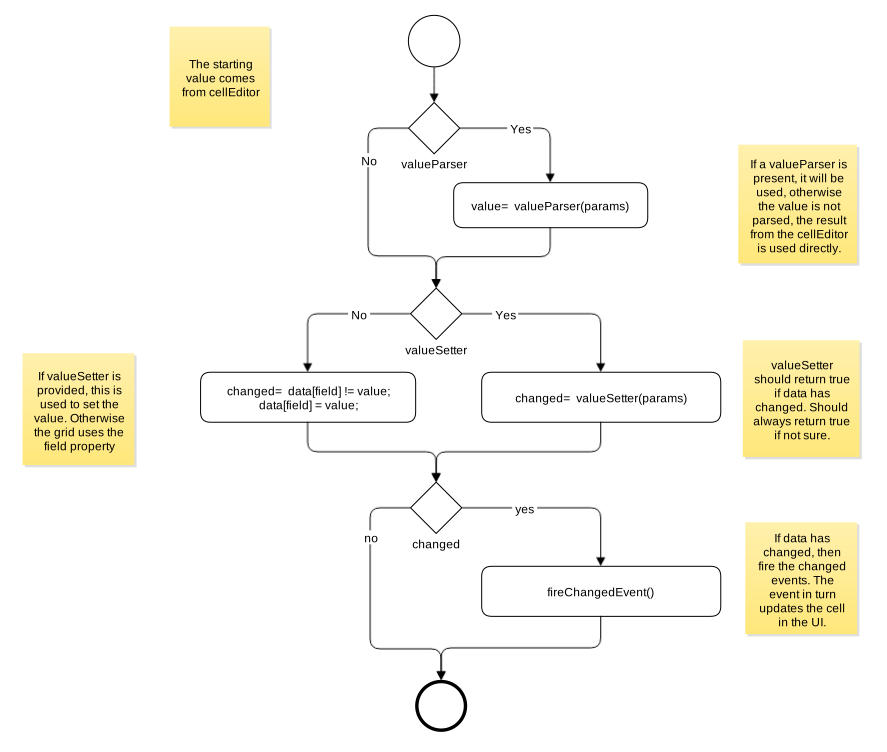
Value Saving Flow
The flow diagram below shows the flow of a value after it is edited using the UI.
Value Setter
A valueSetter is the inverse of a valueGetter, it allows you to put
values into your data in a way other than using the standard colDef.field.
The interface for valueSetter is as follows:
// function for valueSetter
function valueSetter(params: ValueSetterParams) => boolean;
// interface for params
interface ValueGetterParams {
oldValue: any, // the value before the change
newValue: any, // the value after the change
data: any, // the data you provided for this row
node: RowNode, // the row node for this row
colDef: ColDef, // the column def for this column
column: Column, // the column for this column
api: GridApi, // the grid API
columnApi: ColumnApi, // the grid Column API
context: any // the context
}
// example value setter, put into a particular part of the data
colDef.valueSetter = function(params) {
// see if values are different, if you have a complex object,
// it would be more complicated to do this.
if (params.oldValue!==params.newValue) {
params.data[someField] = params.newValue;
// get grid to refresh the cell
return true;
} else {
// no change, so no refresh needed
return false;
}
}
Value Parser
A valueParser allows you to parse values after an edit (or after the user sets
a value using the grid API).
The interface for valueParser is as follows:
// function for valueParser
function valueParser(params: ValueParserParams) => any;
// interface for params
interface ValueParserParams {
oldValue: any, // the value before the change
newValue: any, // the value after the change
data: any, // the data you provided for this row
node: RowNode, // the row node for this row
colDef: ColDef, // the column def for this column
column: Column, // the column for this column
api: GridApi, // the grid API
columnApi: ColumnApi, // the grid Column API
context: any // the context
}
// example value parser, convert a string to a number
colDef.valueParser = function(params) {
// this is how to convert a string to a number using JavaScript
return Number(params.newValue);
}