ag-Grid OpenFin Integration
OpenFin provides runtime technology solutions for financial desktops. Below we document and illustrate how you can use
ag-Grid within the OpenFin platform.
Full working examples can be found in GitHub.
Installation
git clone https://github.com/ag-grid/ag-grid-openfin-example
cd ag-grid-openfin-example
npm install
Now that the examples and dependencies have been installed, you can run the examples. Open a terminal and run
the following to serve up the applications:
npm run server
Depending on the example you wish you run, you will need to open one or two more terminal windows - see each example for
more details.
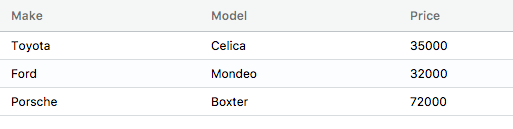
A Simple Grid
A simple ag-Grid running within the OpenFin container.
Open a terminal and run the following command:
npm run simple-grid
A Richer Grid
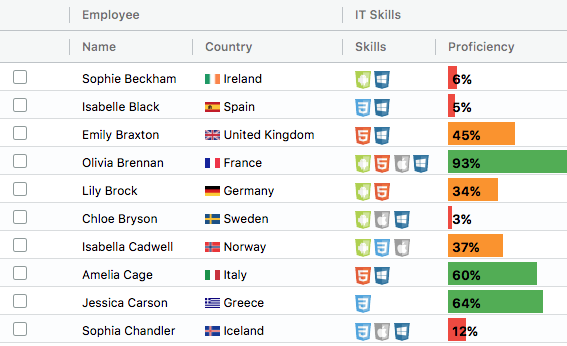
A more sophisticated ag-Grid example running within the OpenFin container.
Open a terminal and run the following command:
npm run rich-grid
A Master/Detail Grid - Single Application
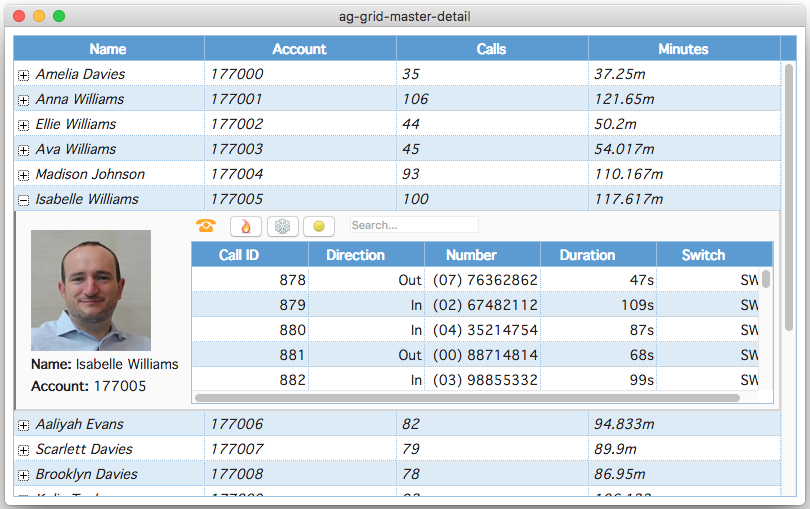
A MasterDetail example within a single OpenFin application
Open a terminal and run the following command:
npm run masterdetail-master-single
A Master/Detail Grid - Multiple Applications
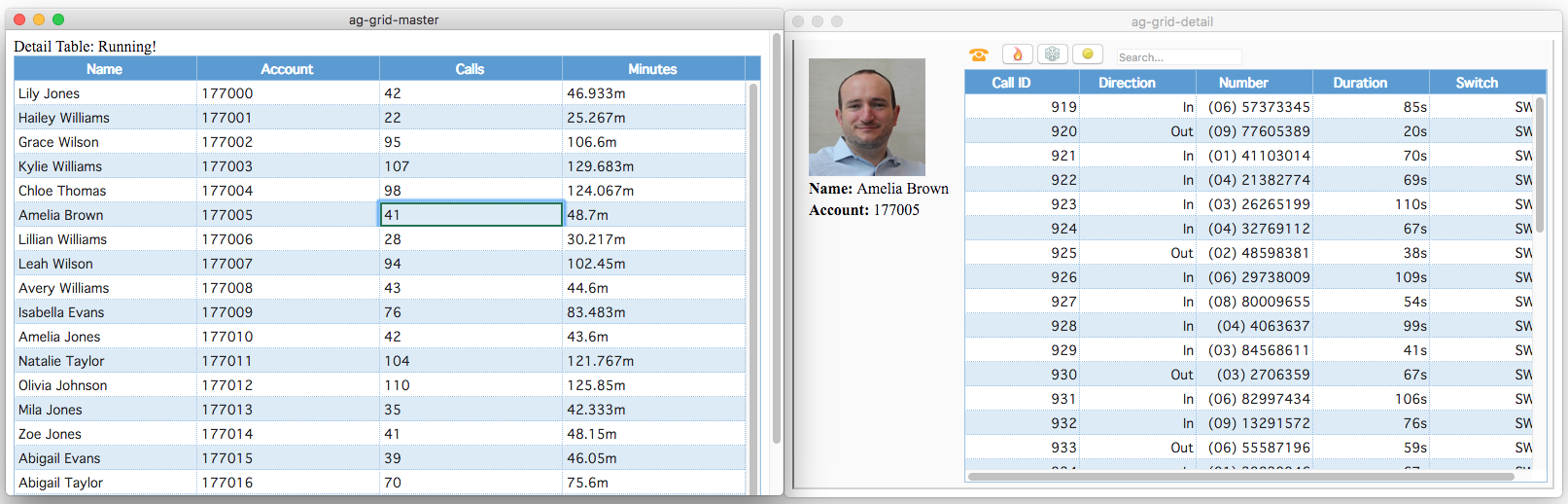
A MasterDetail example within seperate OpenFin applications making use of the OpenFin InterApplicationBus.
Here when a row is clicked on in the "master" application, more detailed information is displayed in the "detail" application.
Open a terminal and run the following command:
npm run masterdetail-master
Open another terminal and run the following command:
npm run masterdetail-detail
A Summary/Graph Grid - Multiple Applications
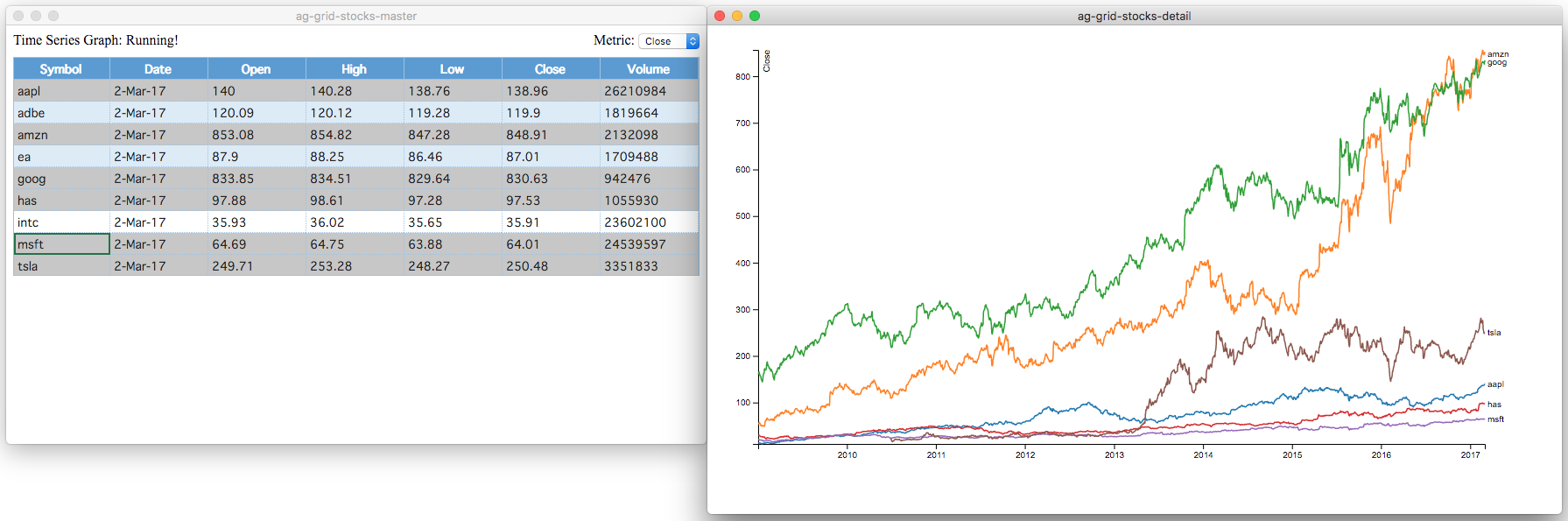
Similar to the Master/Detail example above, this example runs within seperate OpenFin applications making use
of the OpenFin InterApplicationBus.
Here when a row is clicked on in the "master" application, more detailed information is displayed in the "detail"
application making use of d3 to render the resulting graphs.
You can switch between metrics (Open, Close, High, Low etc) or on different stocks and with each action the Graph
application will be updated accordingly.
Open a terminal and run the following command:
npm run stocks-master
Open another terminal and run the following command:
npm run stocks-detail
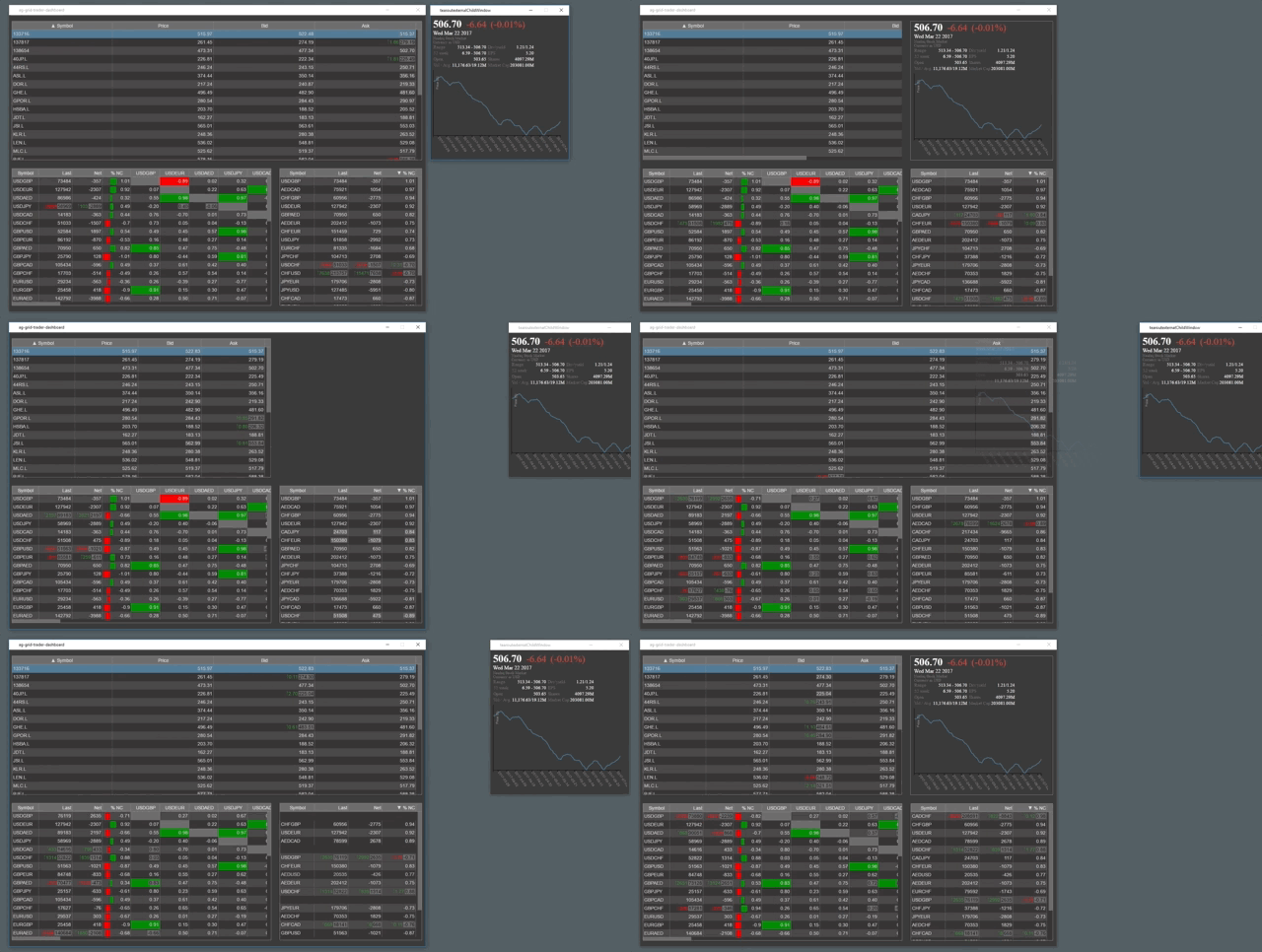
A Trader Dashboard with Tear Out Windows
You can try this example live using the following Link.
This will download a Zip file with a Windows executable within - if you run this executable the Trader Dashboard will install and run on your computer.
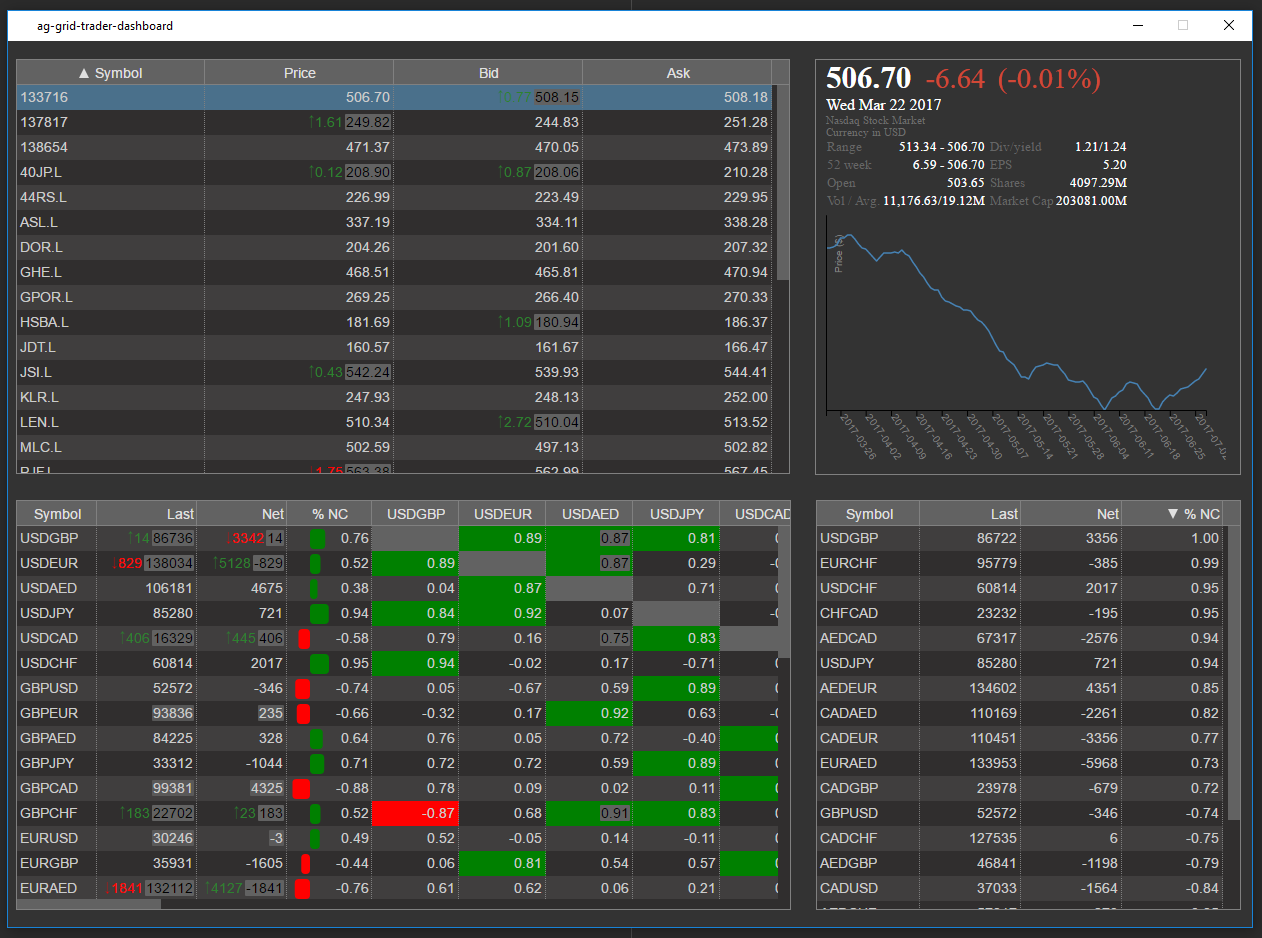
In this example we host the full Trader Dashboard within an OpenFin container,
but also add the ability to tear out the Stock Detail panel from the top left.
The following images show the default state of the application followed by the state of the application with the Detail
Panel torn out:
Default State
Torn Out State
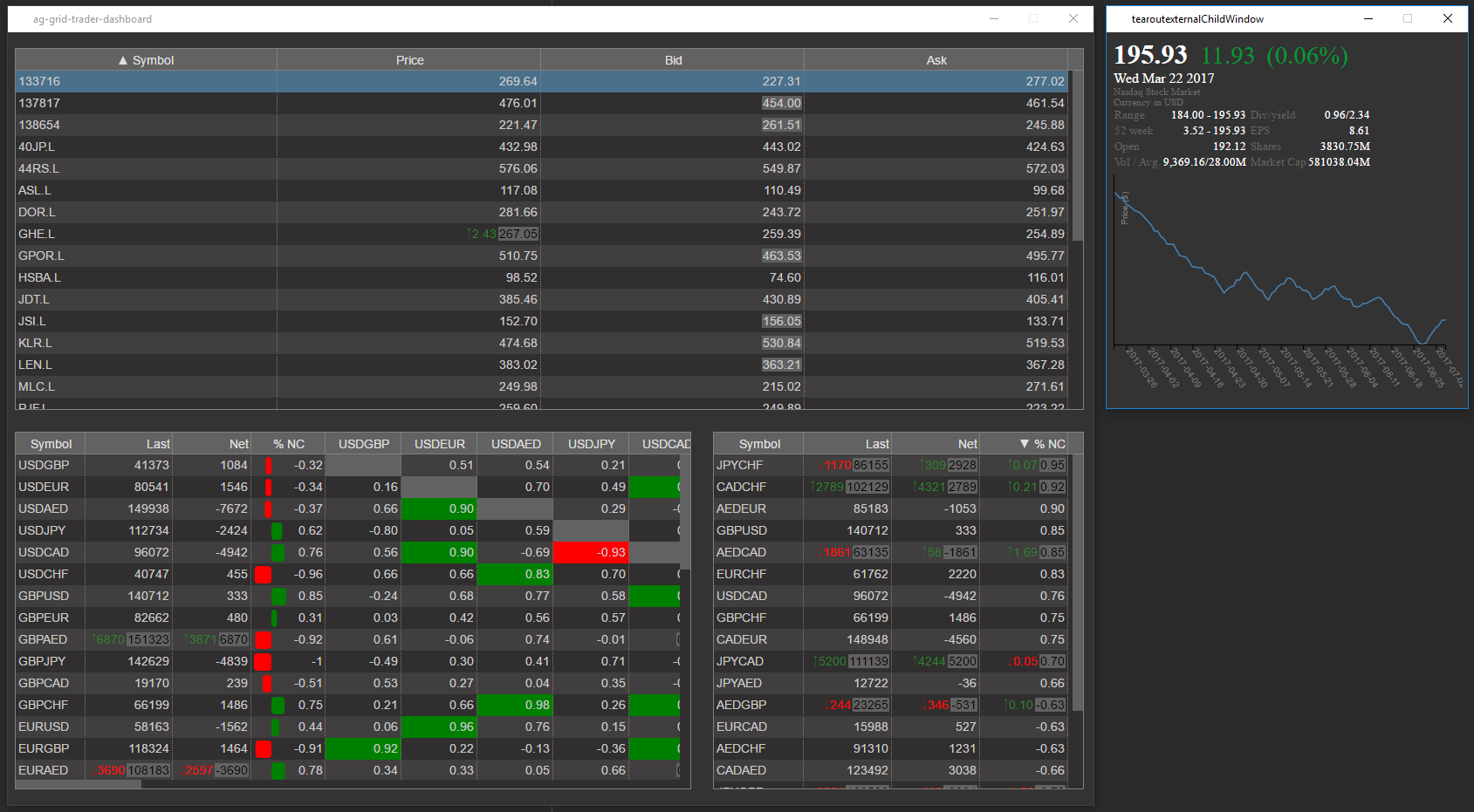
A better illustration of the functionality is shown in the movie below - note how the top grid fills out the remaining space
when the Detail Panel is torn out. Note too that the Detail Panel could become larger once torn out, perhaps showing
a more detailed view once torn out:
Application in Action