Value Getters and Value Formatters
The grid displays values from your data. The easiest way to configure this is to set colDef.field.
The grid then pulls the gets and sets (after editing) the data to this location and does no formatting
for the value.
// the grid is told to use the 'country' field for this column
var countryColDef = {
field: 'country',
...
}
You should use colDef.field most of the time. However you may require to get / set the data
another way, or you may wish to format (for display) or parse (after editing) the data if you do not
display the data 'as is'. For these reasons, the grid provides the following additional methods:
Properties for Getters and Formatters
Below shows the column definition properties for valueGetters and valueFormatters.
| valueGetter(params) |
Function or expression. Gets the value from your data for display.
|
| valueFormatter(params) |
Function or expression. Formats the value for display.
|
| headerValueGetter(params) |
Function or expression. Gets the value for display in the header.
|
| filterValueGetter(params) |
Function or expression. Gets the value for filtering purposes.
|
| floatingCellFormatter(params) |
Function or expression. Formatter to use for a pinned row. If missing, the normal valueFormatter will be used.
|
All the above can be a function or expression.
This page assumes functions. Once you understand this page, you can go to
expression to learn how to specify them as
expressions.
Example - Getters and Formatters
The example below demonstrates valueGetter and valueFormatter.
The following can be noted from the demo:
- Column 'Number' is a simple column with a
field to get the data and without formatting.
- Column 'Formatted' uses the same field, however it formats the value.
- Column 'A + B' uses a value getter to sum the contents of cells 'A' and 'B'.
-
Column 'Chain' uses a value getter than references the result of the 'A + B' value
getter, demonstrating how the value getters can chain result from one to the other.
- Column 'Const' uses a value getter to always return back the same string value.
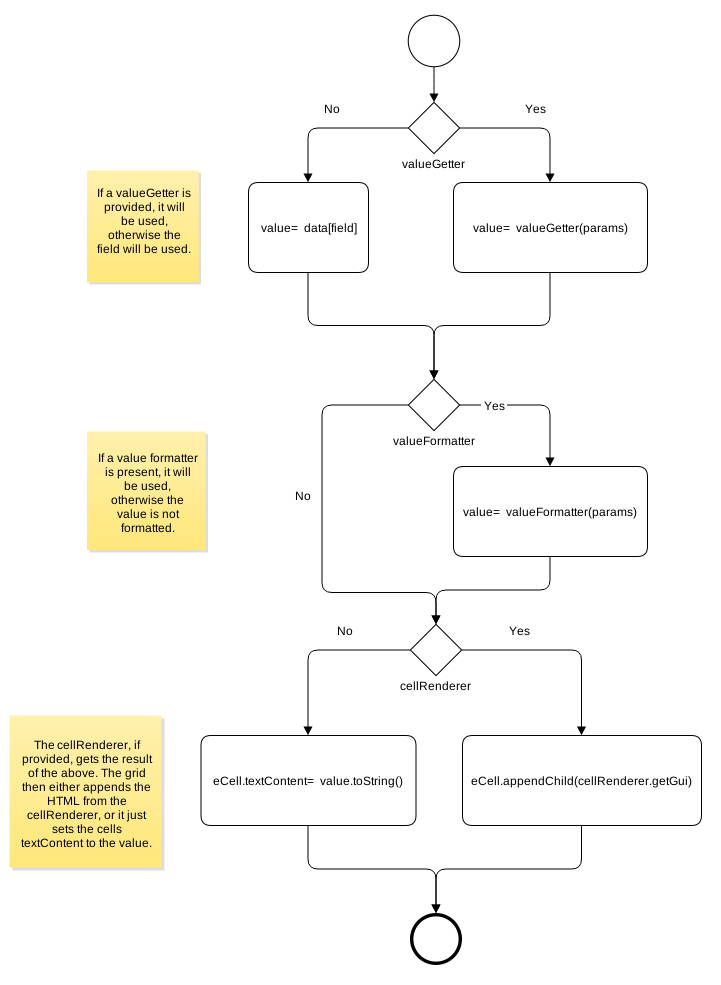
Rendering Value Flow
The flow diagram below shows the flow of the value to displaying it on the screen.
Value Getter
A valueGetter allows you to pull values from your data instead of using the standard
colDef.field mechanism. The interface for valueGetter is as follows:
// function for valueGetter
function valueGetter(params: ValueGetterParams) => any;
// interface for params
interface ValueGetterParams {
data: any, // the data you provided for this row
node: RowNode, // the row node for this row
colDef: ColDef, // the column def for this column
column: Column, // the column for this column
api: GridApi, // the grid API
columnApi: ColumnApi, // the grid Column API
context: any, // the context
getValue: (colId: string) => any // a utility method, for getting other column values
}
// example value getter, adds two fields together
colDef.valueGetter = function(params) {
return params.data.firstName + params.data.lastName;
}
All valueGetters must be pure functions. That means, given the same state of your
data, it should consistently return the same result. This is important as the grid will only call your
valueGetter once during a redraw, even though the value may be used multiple times. For example, the
value will be used to display the cell value, however it can additionally be used to provide values
to an aggregation function when grouping, or can be used as input to another valueGetter via the
params.getValue() function.
A valueFormatter allows you to format or transform the value for display purposes. The section on
Reference Data describes how to transform reference data using a
valueFormatter to display names rather than codes.
The interface for valueFormatter is as follows:
// function for valueFormatter
function valueFormatter(params: ValueGetterParams) => any;
// interface for params
interface ValueFormatterParams {
value: any, // the value before the change
data: any, // the data you provided for this row
node: RowNode, // the row node for this row
colDef: ColDef, // the column def for this column
column: Column, // the column for this column
api: GridApi, // the grid API
columnApi: ColumnApi, // the grid Column API
context: any // the context
}
// example value formatter, simple currency formatter
colDef.valueFormatter = function(params) {
return '£' + params.value;
}
Value Formatter vs Cell Renderer
A cell renderer allows you to put whatever HTML
you want into a cell. This sounds like a valueFormatter and and a cellRenderer
have cross purposes, so you may be wondering, when do you use each one and not the other?
The answer is: valueFormatter's are for text formatting / value transformations.
cellRenderer's are for when you want
to include HTML markup and potentially functionality to the cell.
So for example, if you want to put punctuation into a value, use a valueFormatter,
if you want to put buttons or HTML links use a cellRenderer.
It is possible to use a
combination of both, in which case the result of the valueFormatter will be
passed to the cellRenderer.
Be aware that the Value Formatter params won't always have 'data' and 'node' supplied, e.g. the
params supplied to the Value Formatter in the Set Filter.
As a result favour formatter implementations that rely upon the 'value' argument instead, as this
will lead to better reuse of your Value Formatters.
Header Value Getters
Use headerValueGetter instead of colDef.headerName to allow dynamic header names.
The parameters for headerValueGetter differ from standard valueGetter as follows:
- Only one of column or columnGroup will be present, depending on whether it's
a column or a column group.
- Parameter
location allows you to have different column names depending on
where the column is appearing, eg you might want to have a different name when the column
is in the column drop zone or the toolbar.
See the Tool Panel Example for an example of
headerValueGetter used in different locations, where you can change the header name depending on
where the name appears.
Floating Cell Formatter
Use floatingCellFormatter instead of colDef.cellFormatter to allow different formatting
for pinned rows. If you don't specify a colDef.floatingCellFormatter, then cellFormatter
will get used instead if it is present.
You can use the same formatter for pinned rows and normal rows and check the row type.
You can check if the row is floating by checking params.node.floating property.