
This post shows a brief example of using Cypress to interact with a Vue.js application to check that an ag-grid is Rendering, Sorting and Filtering Data. Full source code is available on Github.

The full project is available on Github.
Getting started
Install Cypress:
$ npm i cypress --save-devAdd the following script to the package.json file:
{ "cypress:open": "cypress open" }Run the Cypress Test Runner:
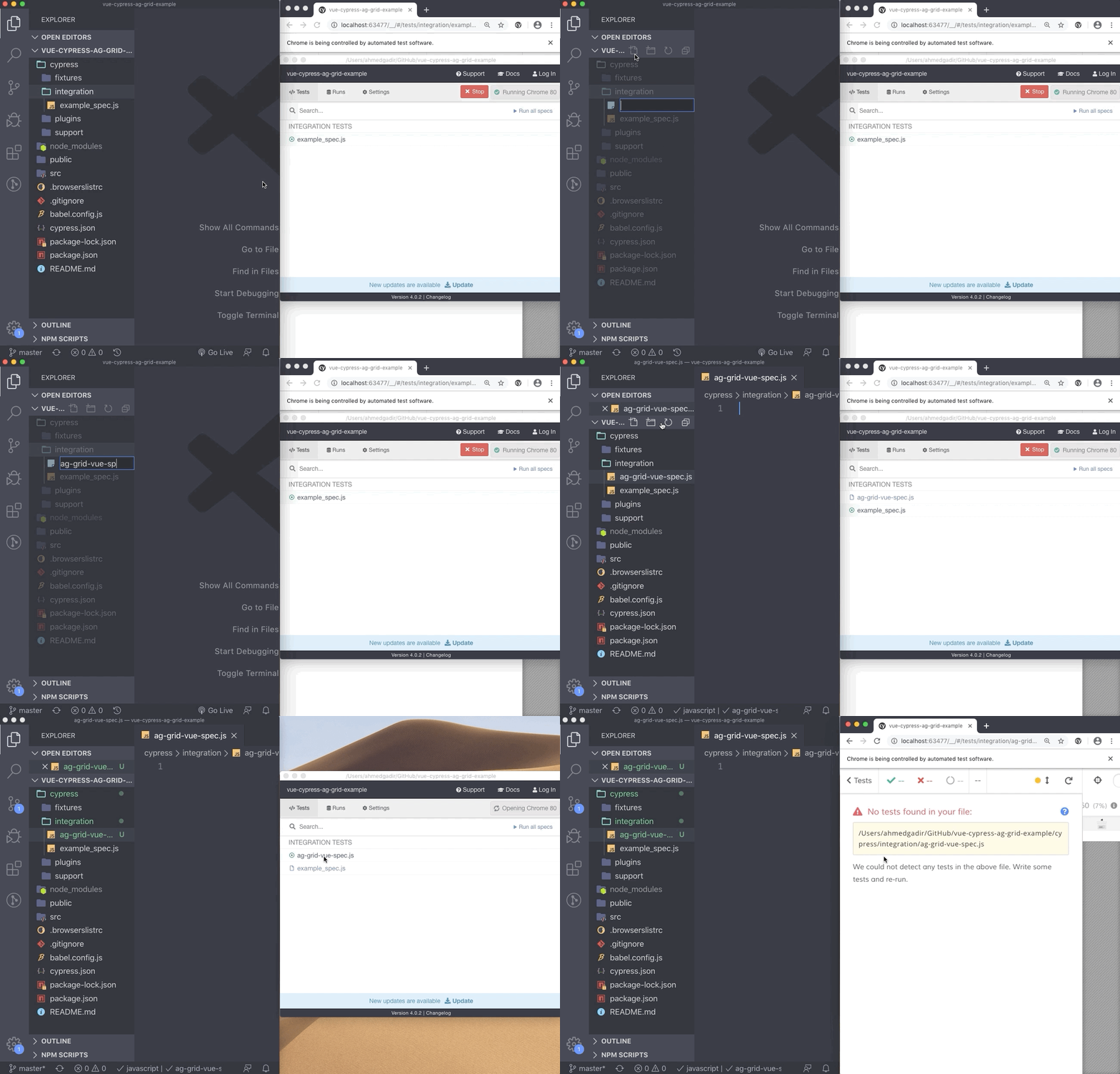
$ npm run cypress:openIn the cypress/integration directory, create a test file and open it in the test runner:
Writing tests
Before each test run cy.visit(###) and pass the URL of the port our app is running on:
 beforeEach(() => {
 	cy.visit('http://localhost:8081');
});Rendering rows
Each cell in the grid has a col-id attribute specifying which column the cell is rendered in.
The data of the first row in the grid is shown below:
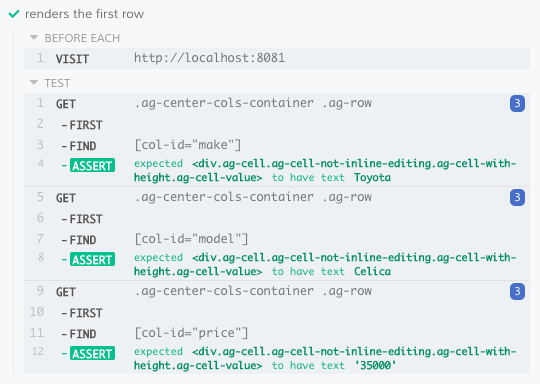
{ make: "Toyota", model: "Celica", price: 35000 }We can test that cells in a given row are rendering the correct values by querying the DOM and evaluating the contents of each cell:
it('renders the first row', () => {
        assertCellValueInFirstRow('make', 'Toyota');
        assertCellValueInFirstRow('model', 'Celica');
        assertCellValueInFirstRow('price', '35000');
    });

 function assertCellValueInFirstRow(colId, value) {
	cy.get('.ag-center-cols-container .ag-row')
		.first()
		.find(`[col-id="${colId}"]`)
		.then(cell => {
			expect(cell).to.have.text(value);
		});
}
Sorting Data
By default nodes are not rearranged in the DOM to match their sorted order. Instead the row-index property of each row is updated upon sorting and the rows position in the browser is calculated and set with CSS.
This means that querying the DOM will always return the nodes in their original order, regardless of whether the rows are being sorted or not.
ensureDomOrder in gridOptions.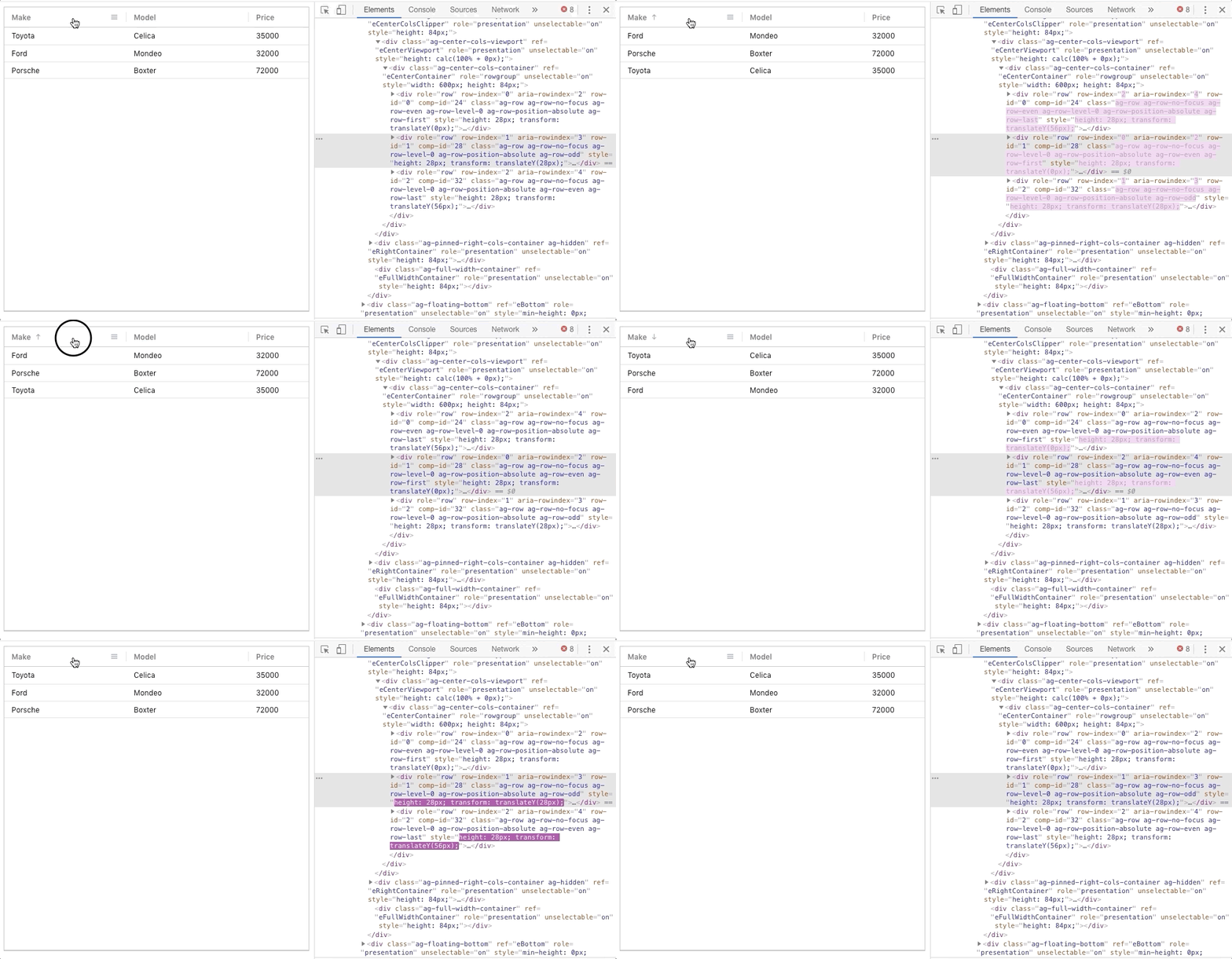
To test that data is being sorted correctly we'll first need to query the DOM and sort the rows using their row-index property:
cy.get('.ag-center-cols-container .ag-row')
	.then(rows => {
		return rows.sort((a, b) => {
			return +a.getAttribute('row-index') - +b.getAttribute('row-index');
		})
	})
The expected order when applying an ascending sort to the 'make' column is shown below:
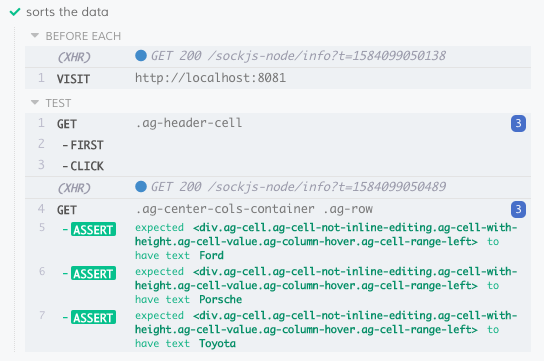
const EXPECTED_ORDER = ['Ford', 'Porsche', 'Toyota'];We can now evaluate whether the queried cells follow that order by iterating over the sorted rows:
it('sorts the data', () => {
	cy.get('.ag-header-cell')
		.first()
		.click()

    cy.get('.ag-center-cols-container .ag-row')
		.then(rows => {
			return rows.sort((a, b) => {
				return +a.getAttribute('row-index') - +b.getAttribute('row-index');
			})
		})
		.then(sortedRows => {
			const EXPECTED_ORDER = ['Ford', 'Porsche', 'Toyota'];
			sortedRows.each((ind, row) => {
				let makeCell = row.querySelector('[col-id="make"]');
                expect(makeCell).to.have.text(EXPECTED_ORDER[ind]);
			})
		})
});
Filtering Data
To filter on a column we need to:
- Open the column menu
- Change tabs to the filter menu
- Enter text into the mini-filter and press enter
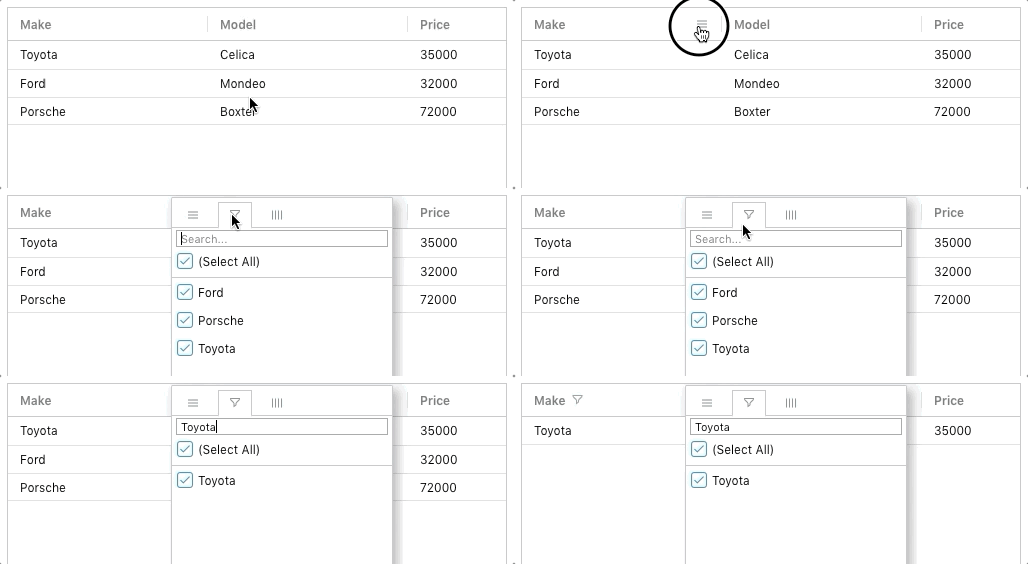
As with sorting, we can test that the correct values are being filtered by querying the cells in the filtered column and evaluating their contents:
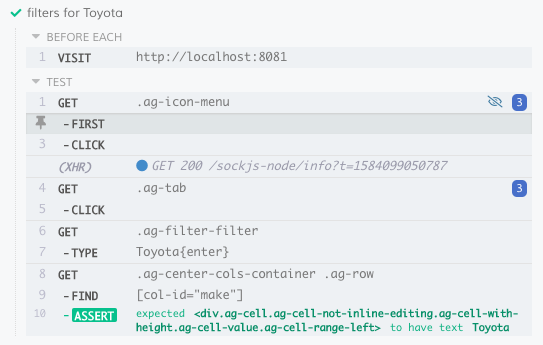
it('filters for Toyota', () => {
	cy.get('.ag-icon-menu')
		.first()
		.click()

	cy.get('.ag-tab')
		.then(tabs => tabs[1])
		.click()

	cy.get('.ag-filter-filter')
		.type('Toyota{enter}')

	cy.get('.ag-center-cols-container .ag-row')
		.find(`[col-id="make"]`)
		.then(cells => {
			cells.each((_, cell) => {
				expect(cell).to.have.text('Toyota');
			});
		})
});
What's next?
If you would like to try out ag-Grid check out our getting started guides (JS / React / Angular / Vue)
And the full project used in this blog post is available on Github.
Happy coding!