
Drill through is now available in AG Studio. Alongside it, we’ve introduced context menus, popups, row highlighting, and a standalone single-widget layout, with examples showing how developers can put these together in their own applications. For everything else that’s new in 3.1, see our release blog.
We knew we wanted drill through in AG Studio, and we heard as much from our customers. Whether it was requested by name, or described to us by way of a user journey, we had all the right signals to show that our hunch was met by a demand. However, we still needed to decide how much of this should be a configured feature inside Studio, and how much developers should put together in their own applications.
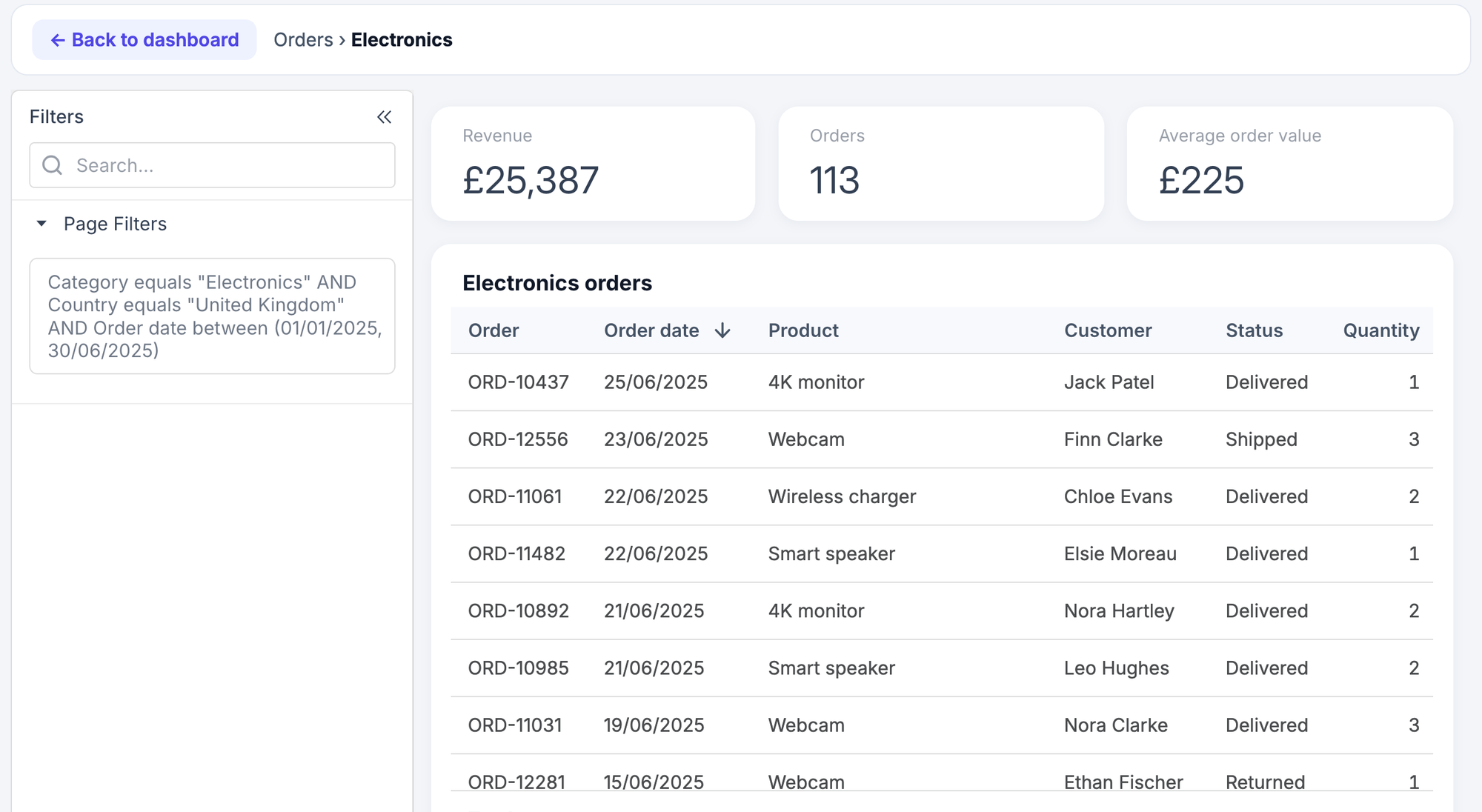
The idea was familiar enough. You’re looking at a dashboard, and something catches your eye that makes you want to find out more about a particular detail. Consider someone looking at revenue by category, who would like to see the orders associated with Electronics. They might also expect the country and date range they were looking at to come with them.
With drill through, we want to go from the summary to the records behind it. This is different from drill down, where the user moves through levels of a hierarchy within the same view. We’re also planning to support drill down very soon in Studio, but that’s for another post.
I’ve clicked “show details”, now what?
There are several reasonable places we could take that user. We could produce a details page, within Studio, that replaces their existing dashboard page. We could open up a popup, and display the details there. The host application might already have an orders page, in which case that could be the most useful destination.
What about the starting point? They might have filtered their widget to an individual country, or a particular date range, or both. Maybe they applied these filters at the page level instead, or some combination of widget-level filters and page-level filters. Will “show details” pull those selections across, too? What if I only want to pull through widget-level filters, or only want page-level filters, or neither, or both?
The phrase “drill through” doesn’t help to answer any of this. We had to work through the journey to understand where our involvement starts and stops.
How much should Studio decide?
We considered making drill through a workflow that you configure within Studio, which would have an obvious benefit - less integration work for the developer. The analyst could pick a destination, configure the behaviour, and Studio would handle it.
I’m fortunate to work alongside world-class developers and designers, and I’m certain that we could have found a workflow that would exceed the expectations of some of our users. However, this would also mean making decisions on behalf of developers who know far more about their applications, and their users, than we do.
For example, we might provide a way for an analyst to select another Studio page as their destination. That would work well until someone wanted to navigate to a page in the host application instead. We could add an option for that, too. But what information would that page expect to receive, and how should it receive it? Similarly, how would the user navigate back? Our concern was that we risked designing configuration for behaviours that the application already knows how to handle.
None of these are unreasonable things to support. However, the more we considered, the more we questioned whether a configured workflow was the right approach for what we wanted to deliver.
Where we landed
We decided to provide the capabilities that developers could put together to suit their own applications. Studio will apply the drill through filter, and provide the supporting interaction features. The developer would decide how the action is offered, which context is carried across, and where the user goes next.
This allows us to leave those decisions with the developer until they are putting the journey together, rather than make them through the workflows we choose to support within Studio.
Going back to our Electronics example, the application could offer “Show orders” through a context menu. The developer could take the filter describing Electronics, combine it with the country and date filters, and open a detail report in a popup.
Another application might offer the same action, but take the user to its existing orders page. A third might replace the current Studio report, and provide a button to return to the previous one. Studio is built developer-first, so we wanted these choices to be made by the people who know the application best. That includes the parts of it Studio has no involvement in, such as an existing orders page or a navigation pattern of its own.
What we shipped
Working through drill through also gave us cause to introduce capabilities that have uses of their own.
The drill through filter.
Studio applies the filter describing what the user selected and, by default, displays it in the Filters Panel, so the user can see what is affecting the destination report.
Row highlighting.
We also wanted to allow users to see the relevant records without removing everything else from the table. Row highlighting provides this, highlighting the rows that match the drill through filter, whilst leaving the other rows visible for comparison.
Context menus.
Developers can supply the actions that make sense for their application, based on where the user clicked. Whilst drill through is one such action, there’s no requirement for the menu to be used for that purpose.
Popups.
A popup can display a detail report, or other content supplied by the application, without replacing the dashboard. Developers can choose whether it should be movable, resizable, or maximisable.
A single-widget layout.
Setting layout: { type: 'standalone' } allows one widget to occupy the available space. That’s useful for displaying a table in a popup, but it also allows developers to place a single Studio widget elsewhere in their application.
These features came into scope as we explored drill through, and we wanted them to remain useful beyond that particular journey. Our examples show how they can be used to replace a report, open one in a popup, or provide a custom action.
What do we carry across?
The filters were an important part of this decision. It would be easy to assume that everything affecting the original widget should also affect the destination. In many cases, that would be exactly what the user expects. However, we had already identified cases where the developer might want something different.
Our context menu callback provides a filter describing what was clicked. It also provides access to the active page, widget, and cross-filters, so the developer can decide which of those belong in the destination.
In one case you might configure “Show orders” so that it carries across the country and date range, whilst in another case you may choose to configure “Show all Electronics orders” which will carry across only the category. Both are reasonable actions, provided that the application makes their meaning clear to the user. Once the filter is supplied to the destination Studio report, Studio applies it and, by default, displays it in the Filters Panel.
The trade-off we made
There is an obvious downside here, particularly for a developer whose requirements would have been met by a workflow configured within Studio. They now need to put that workflow together themselves. We might be giving them choices, but perhaps they would have been quite happy with the choices we made for them.
We felt that leaving these decisions with the developer was worthwhile, given the different journeys we had considered. However, we would also like to make the common cases straightforward to implement. This is where the examples are important, so there is somewhere to start without having to work it all out from the individual APIs.
Direction of travel
This is also how we would like to approach similar decisions elsewhere in Studio. We want to be as unopinionated as we can about how Studio fits into an application, particularly where the developer is better placed to decide what should happen.
However, there are aspects of Studio where we should have an opinion. How charts are drawn, how standard interactions behave, what the defaults should be, and so on, are all part of the analytics experience we are providing. These are areas where we have the expertise, and where we can provide consistency for the people using Studio.
The Filters Panel is one example. Whatever the developer has chosen to do before opening the destination report, we would like the user to be able to see which filters are affecting it. We display those filters by default, although the developer can hide the panel if their application provides that information elsewhere.
Deciding where the action belongs, which context should be carried across, or how the user gets back is a different matter. The application might already have a way of doing these things, and we would like developers to be able to use it. Drill through gave us cause to consider both the analytics experience and the application around it, and to discuss where our involvement in each should start and stop.
We will have more of these decisions to make as Studio develops. We would like to be consistent in how we approach them, whilst recognising that providing more choice also leaves more for the developer to do.
Over to you
Drill through is available now, and the examples provide somewhere to start. At the beginning, we had the signals that it was something worth building. What those signals didn’t tell us was how much of the journey we should own. That became clearer as we considered the different destinations, the filters, the way back, and so on.
I’m happy with where we landed, although I would be interested to hear from developers who would have preferred more of this to be handled within Studio. Which decisions would you have been happy for us to make? Where would our choices have got in your way? We’ve worked through the journeys we could identify, and now we would like to hear about yours to help us understand whether we’ve drawn the line in the right place.
Get started
The Drill Through documentation has four live examples, covering drilling through in place, passing on the active filters, opening the detail report in a popup, and highlighting rows in a table. Pick the one closest to your application and make it your own.
New to AG Studio? Request a free trial to test it in production and access our dedicated support: